Your notes, filed by the day it happened.
Jyotish Notes for Android 1.5 and iOS 1.5 (coming soon) · Notes · Updated October 6, 2026
A journal kept by the dates of your life, not the day you wrote it, with each date's daśā picture beside the note.
Something happens: a job offer, a move, a first talk to a full hall. A few days later you sit down to write it up. In Jyotish, the date that matters is the day it happened, because that is the date the chart is read against.
So in 1.5, every note is filed under the date of its event, and the journal is organised around those dates.
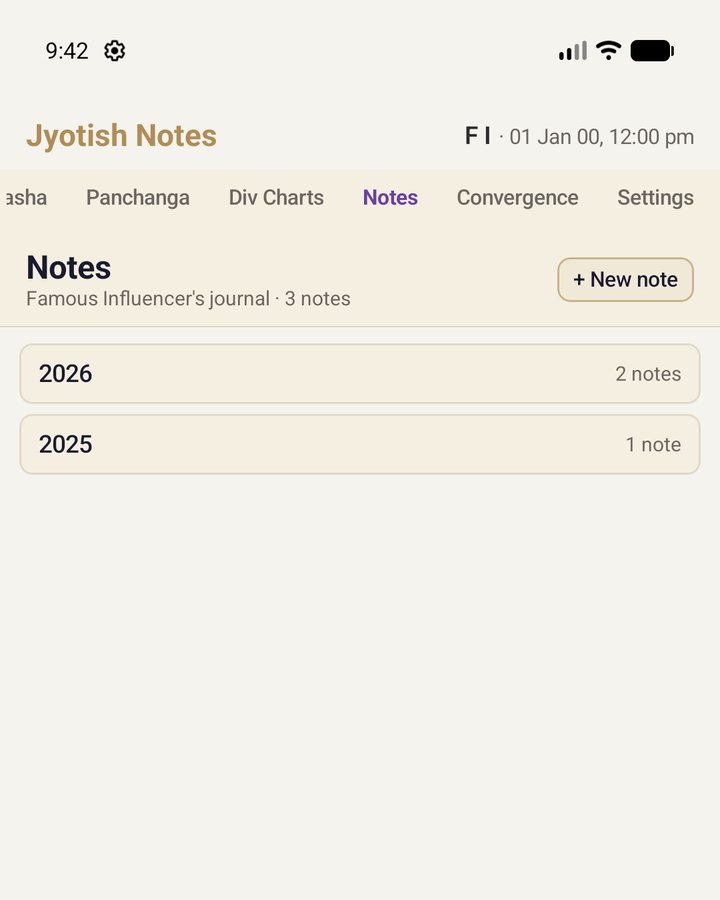
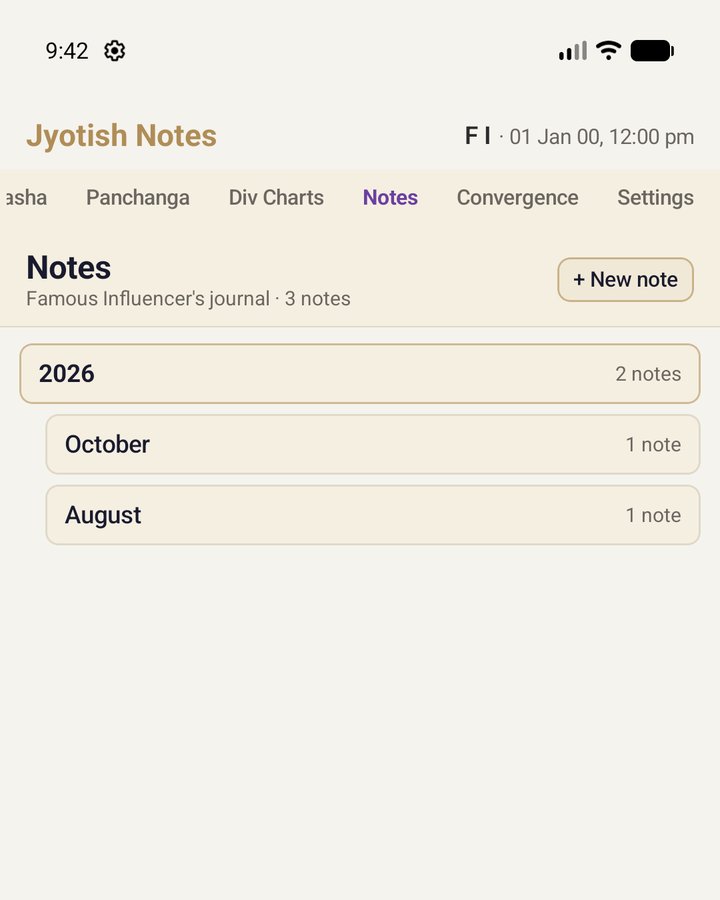
Year › Month › Date
The journal reads like the Dasha tab. Tap a year to see its months, a month to see its dates, and a date to see its notes. Each row tells you how many notes it holds, so you can see at a glance where a year was busy.
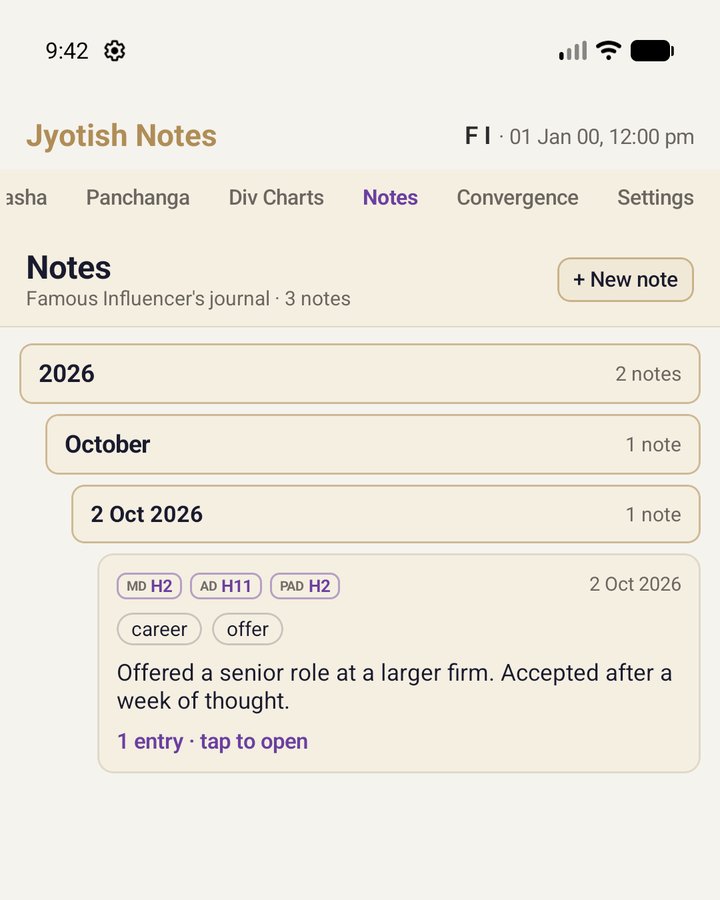
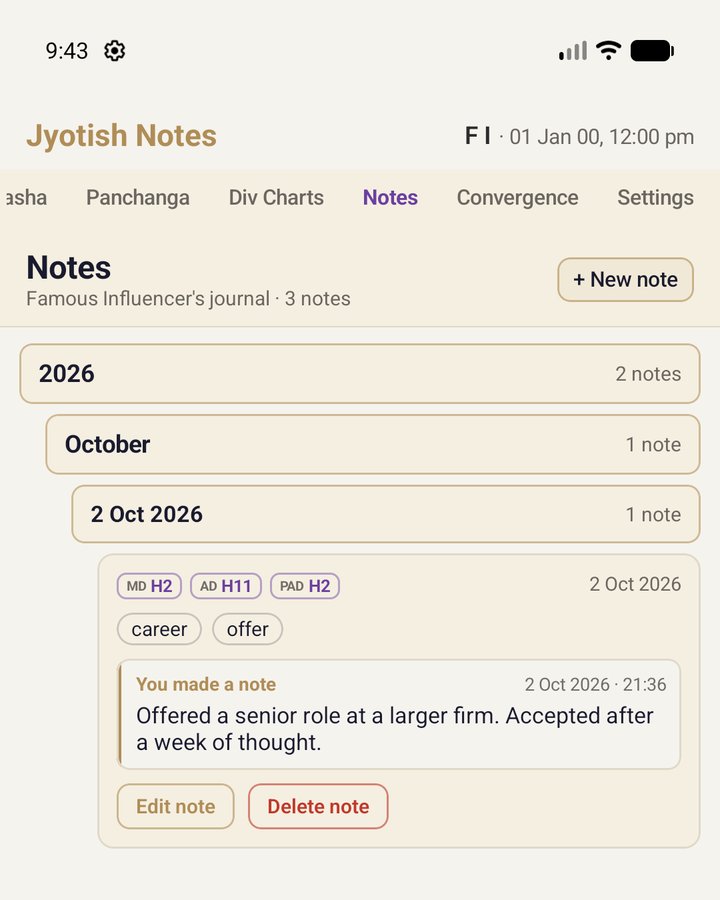
Each note card carries the houses of the three daśā lords running on that date (MD, AD and PAD), your tags, and the start of the text. Tap it to read every entry, and to edit or delete the note.
Start from the date
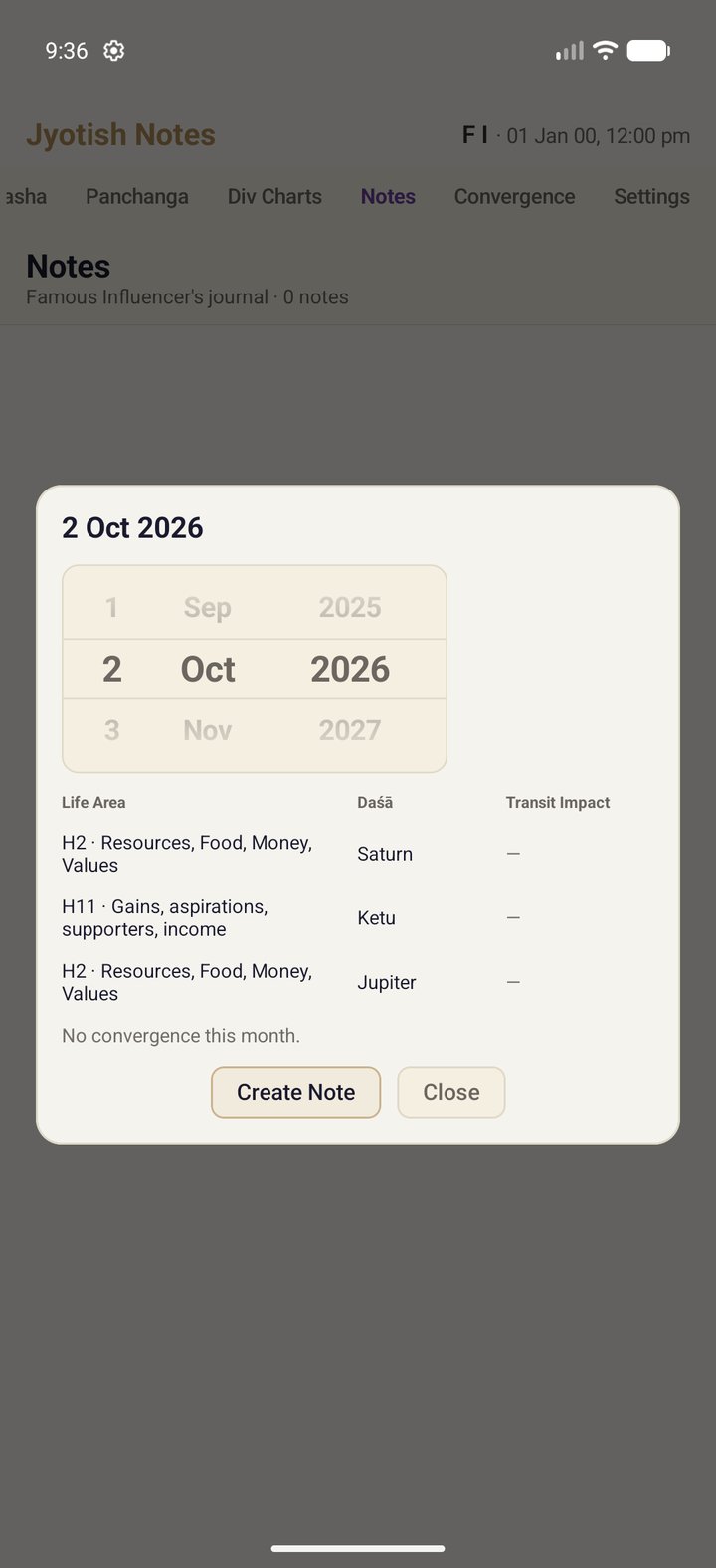
+ New note opens the date inspector. Turn the day, month and year drums to the date of the event. Below the drums is that date's daśā picture: the three running lords, with the house each occupies in this chart and what that house stands for, and the transits beside them.
Then tap Create Note. The same inspector opens from the Convergence tab when you tap a date there, so a note can start from either place.
Writing it down
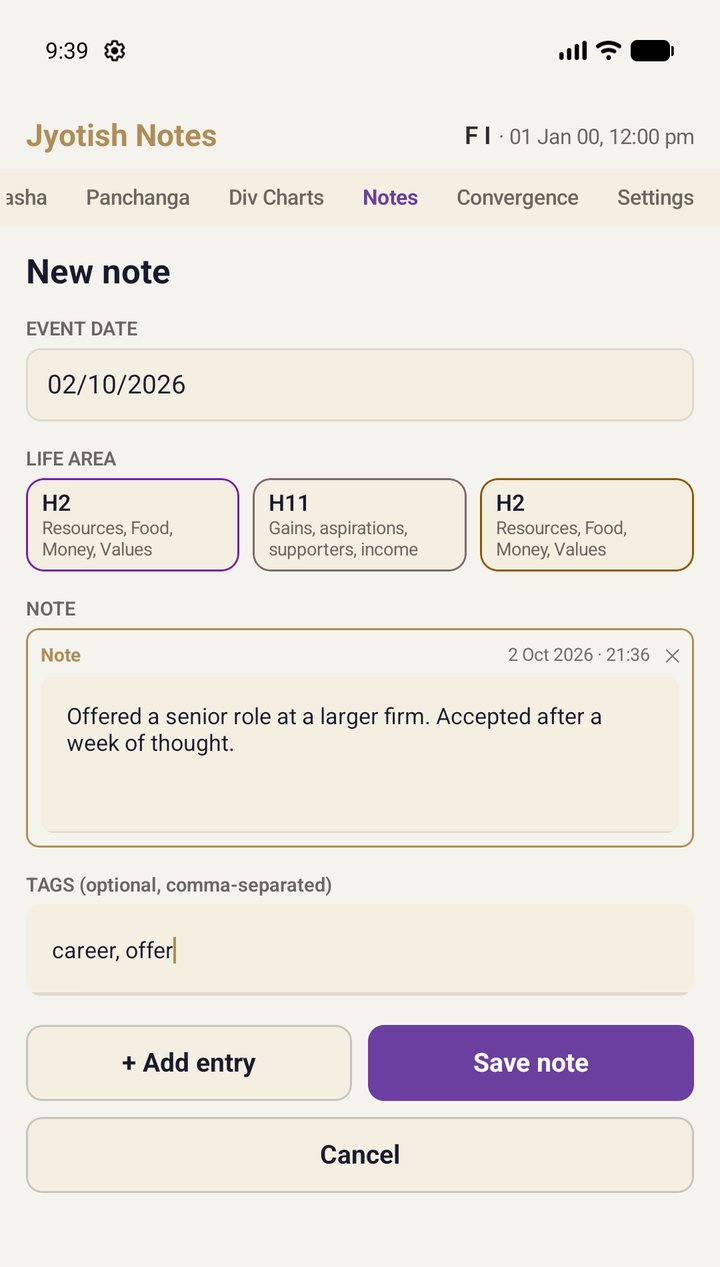
- The event date is set by the inspector, so a note can never land on the wrong day by a typing slip.
- Life Area shows the houses of that date's three daśā lords, a memory hook for why the day mattered.
- Tags are optional and comma-separated: career, offer.
- + Add entry adds another entry to the same date, each with its own time stamp. Come back a month later and add how things turned out.
Room for a working diary
| Entries per event date | up to 10 |
|---|---|
| Characters per entry | 1,000 |
| Tags per entry | up to 12 |
| Notes per year, per chart | 1,500 |
If a save would go past one of these, the editor stays open and tells you why. Nothing is trimmed behind your back.
The app supports up to 1,000 charts.
Your notes on your other devices
Notes live on your device, next to your charts, and work offline. On Android, to have them on your tablet as well, turn on Chart notes on the Sync card in Settings: your notes then travel through your own Google Drive, exactly as your charts do. How sync works →
From 1.5, notes are left out of Android's own cloud backup of the app, because a year of notes can outgrow its size limit. The Chart notes switch is how they reach your other devices.
On iPhone and iPad
iOS 1.5 (coming soon) brings the same journal: Year › Month › Date by the date of the event, + New note opening the date inspector with its daśā picture (from the Convergence tab too), and the same room: up to 10 entries a date and 1,000 characters an entry, with up to 12 comma-separated tags.
Near a limit a counter appears; at the limit, typing stops and a paste is cut to fit. To have your notes on your iPad as well, switch on Sync charts, notes and settings in Settings: one switch carries your charts and notes together through your own iCloud. How iCloud sync works →
The screenshots use the built-in sample chart Famous Influencer; the notes in them are examples.