Your charts now travel to your other devices. They never visit us, or anyone you didn't choose.
Jyotish Notes for Android · Google Drive sync · Updated October 4, 2026 · On iPhone or iPad? See iCloud sync.
They stay in your own Google Drive, secured by your Google Account.
Sync has arrived in Jyotish Notes for Android. Save a chart on your phone, open it on your tablet. It gets there through a private folder in your Google Drive that only Jyotish Notes can open.
Not through our cloud. We didn't build one. That was the whole idea.
“Stored securely in the cloud.”
You have read that sentence in a hundred apps. It is a comforting sentence. It also leaves out three things:
- Whose cloud?
- Who else holds a key?
- What happens to your data on the day that company has a very bad day?
We ask with a smile, but we are not joking. When someone entrusts you with their birth chart, you are holding a name, a date, a time and a place of birth. Who do you trust to keep the birth details of your family, friends and clients safe? Keeping a cloud secure is best left to the experts.
Google does cloud, while you do Jyotish.
So when we sat down to build sync, we skipped building a cloud of our own, in favour of Google Drive.
The safest server for your charts is the one we never built.
Where your charts go instead
Into your own Google Drive: what you trust for your photos and documents, on the Google account your phone is signed in to. Nothing new to sign up for, and no new password.
The whole journey is:
your phone → your Google Drive → your tablet
There is no fourth stop. Your charts never pass through us, so there is nothing of yours for us to read, lose, sell, or apologise for.
Made for the phone-and-tablet life
Many of us carry a compact phone and keep a tablet at the desk. Sync was designed for exactly that.
- Cast it on the small screen, study it on the big one. Someone asks about a chart at a family function; you save it on your phone. At home, it is already on your tablet.
- Changes travel by themselves. What you save is sent straight away. While the app is open, changes from your other device arrive within a minute.
- Want Jyotish Notes on a bigger screen? Install the app on your tablet, connect Google Drive, and choose your Play Store account when Google lists it. Your chart library arrives — within minutes for most libraries. The Sync card shows the progress, and Show app log lists what has arrived. A new phone works exactly the same way.
- Every device keeps its own full copy. The app works offline exactly as before. Google Drive is only where your devices meet.
- Subscribe once. Your subscription belongs to your Google account, not to one device. Purchases made with an account carry over to your other devices signed in with that account, so your second device gets the full app at no extra cost.
You say yes on Google's screen, not ours
Connecting and turning sync on takes three steps. Here they are, screen by screen. Only the first screen is ours; the questions after it come from Google.
Before you start
- You need a network connection to connect and to turn sync on.
- One Google account at a time. Every device you want to keep in step must connect to the same account. Your Play Store account should be listed for you to choose.
- It uses your Google storage. The synced files count against your Google Drive quota. They are small: a library of 900 charts takes less than 1 MB, and notes add a little more.
- The app supports up to 1,000 charts, and 1,500 notes a year for each chart.
- The folder is hidden. You won't see these files in the Google Drive app or on drive.google.com; only Jyotish Notes can open them. That is deliberate — it keeps them from being moved, renamed or edited by accident.
1 · Connect Google Drive
Connecting takes about a minute.
One button
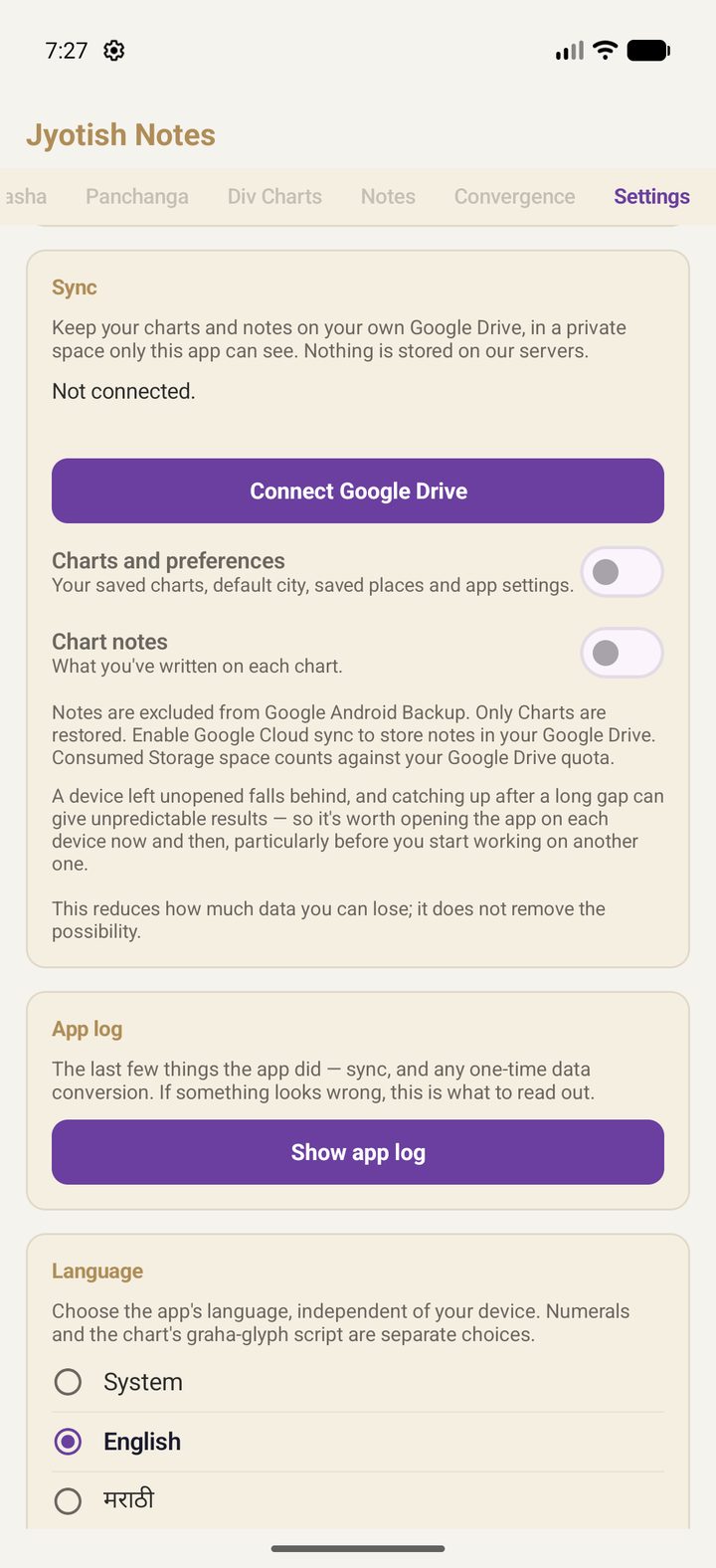
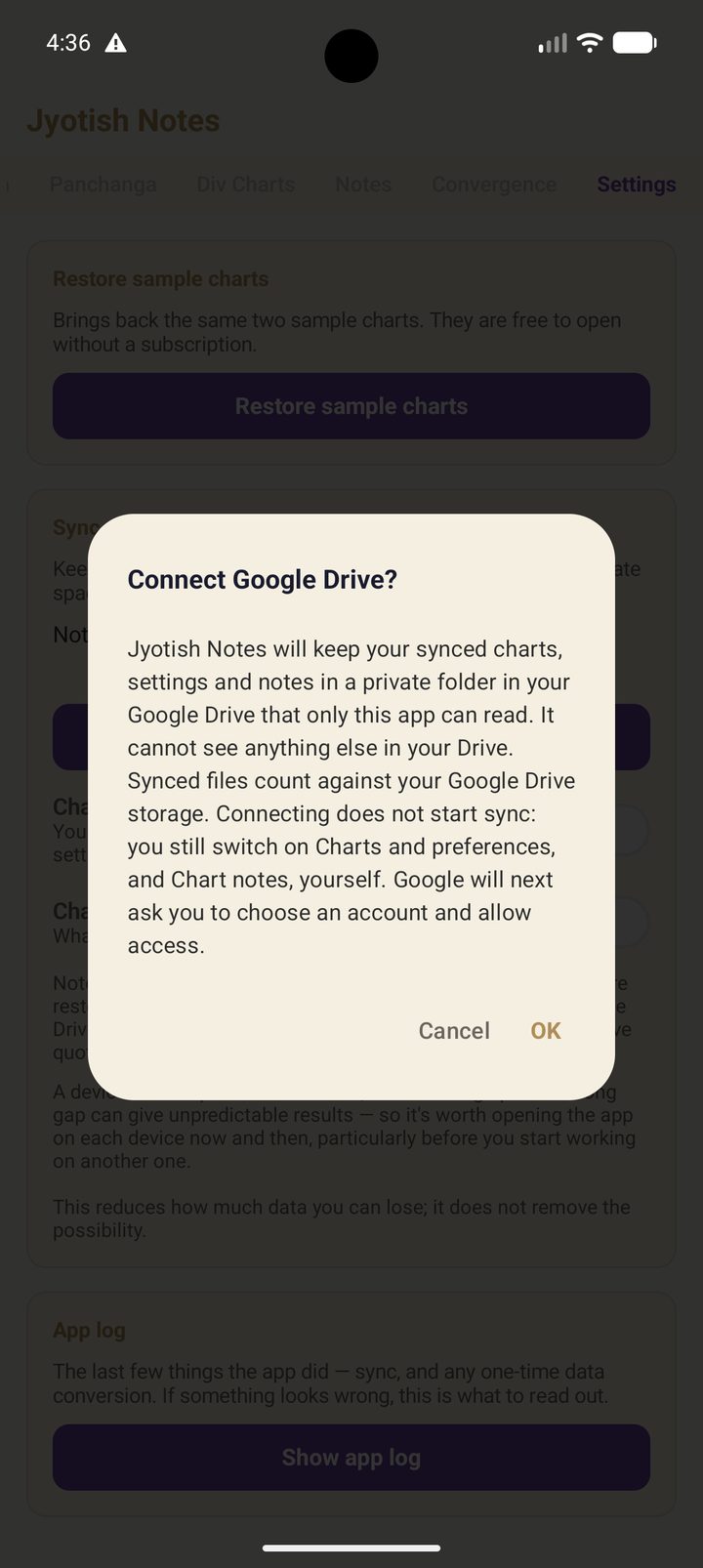
Open the Settings tab and scroll to the Sync card. It reads Not connected, and its button says Connect Google Drive. Tap it, and the app explains what is about to happen before Google asks you anything:
Jyotish Notes will keep your synced charts, settings and notes in a private folder in your Google Drive that only this app can read. It cannot see anything else in your Drive. Synced files count against your Google Drive storage. Connecting does not start sync: you still switch on Charts and preferences, and Chart notes, yourself. Google will next ask you to choose an account and allow access.
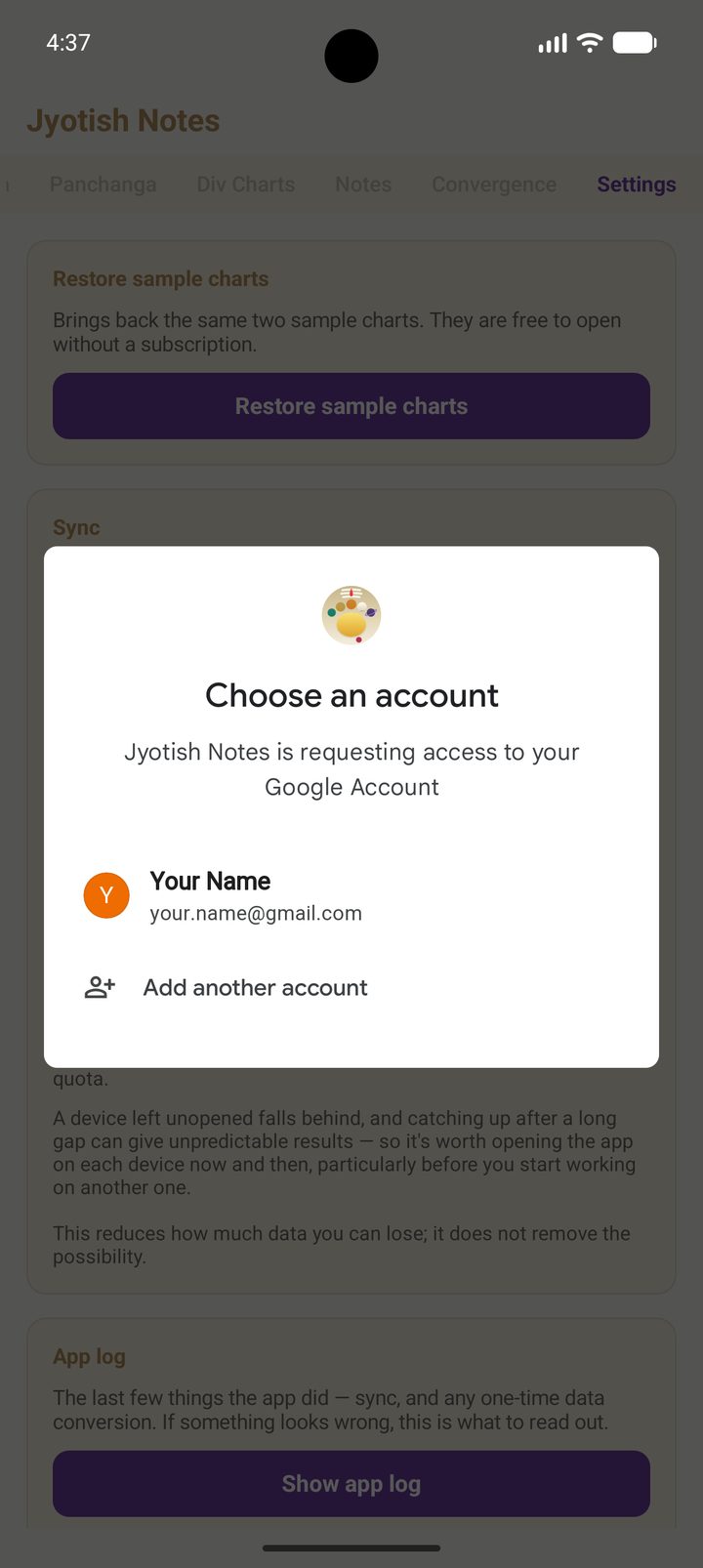
Tap OK. From here on, the questions come from Google, not from us. First, which account: your Play Store account should be listed for you to choose.
Google asks you to allow it
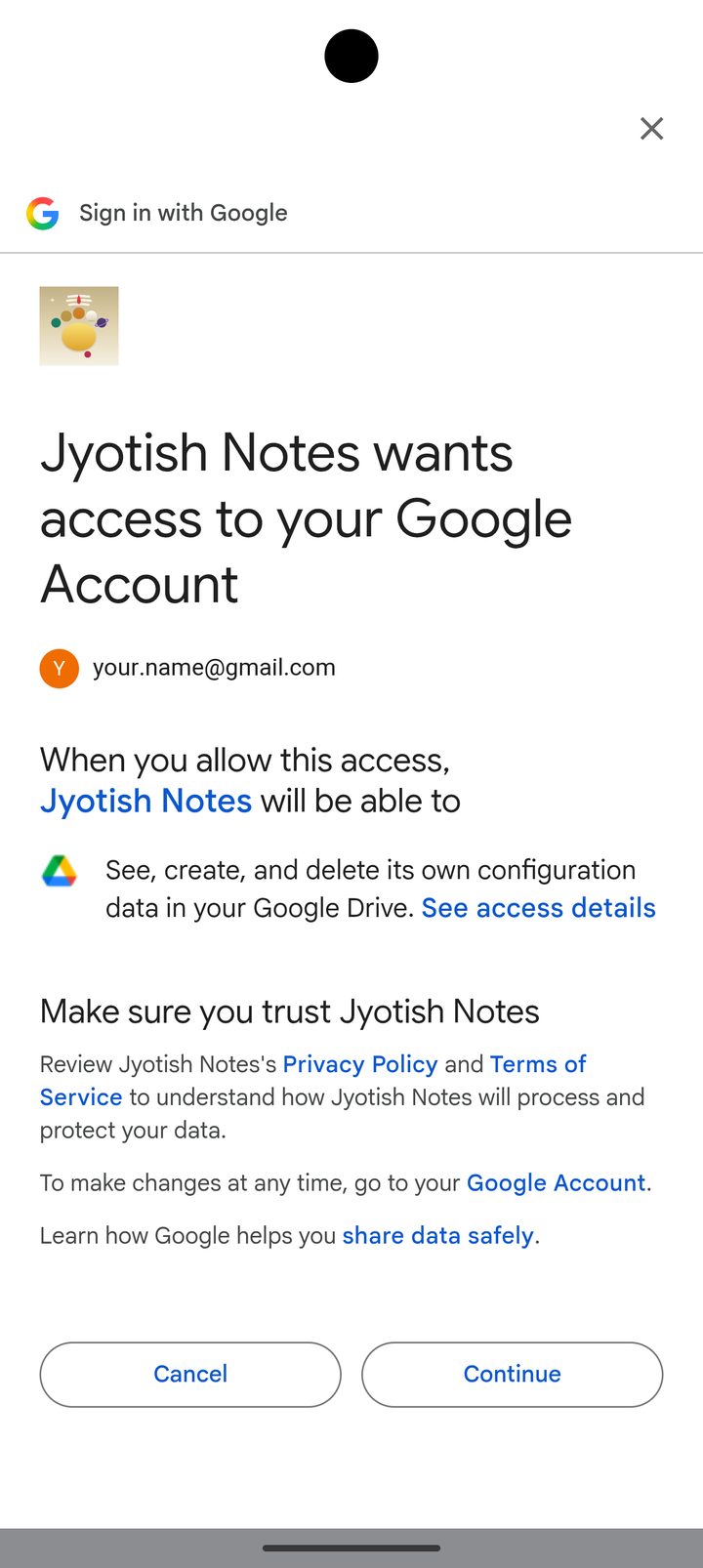
Next comes Google's own approval screen: Jyotish Notes wants access to your Google Account. It lists exactly one thing the app will be able to do: see, create, and delete its own configuration data in your Google Drive. Nothing else in your Drive is on that list, and there is no password to type. The same screen links to our Privacy Policy and Terms of Service.
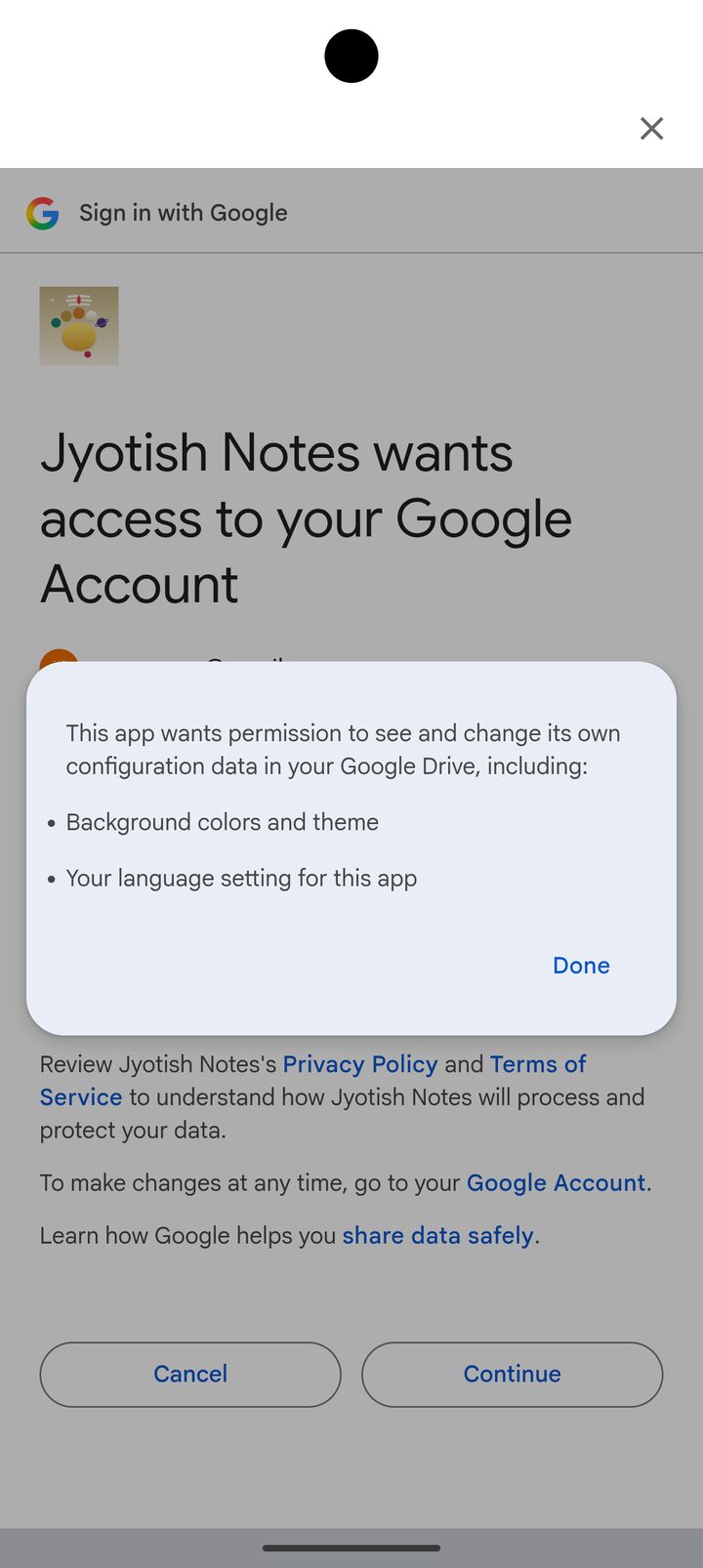
Wondering what "its own configuration data" means? Tap See access details. Google describes it as the app's own data, such as its theme and language settings. For Jyotish Notes, that is your synced charts, settings and notes, kept in the app's private folder. Tap Done, then Continue.
The button changes
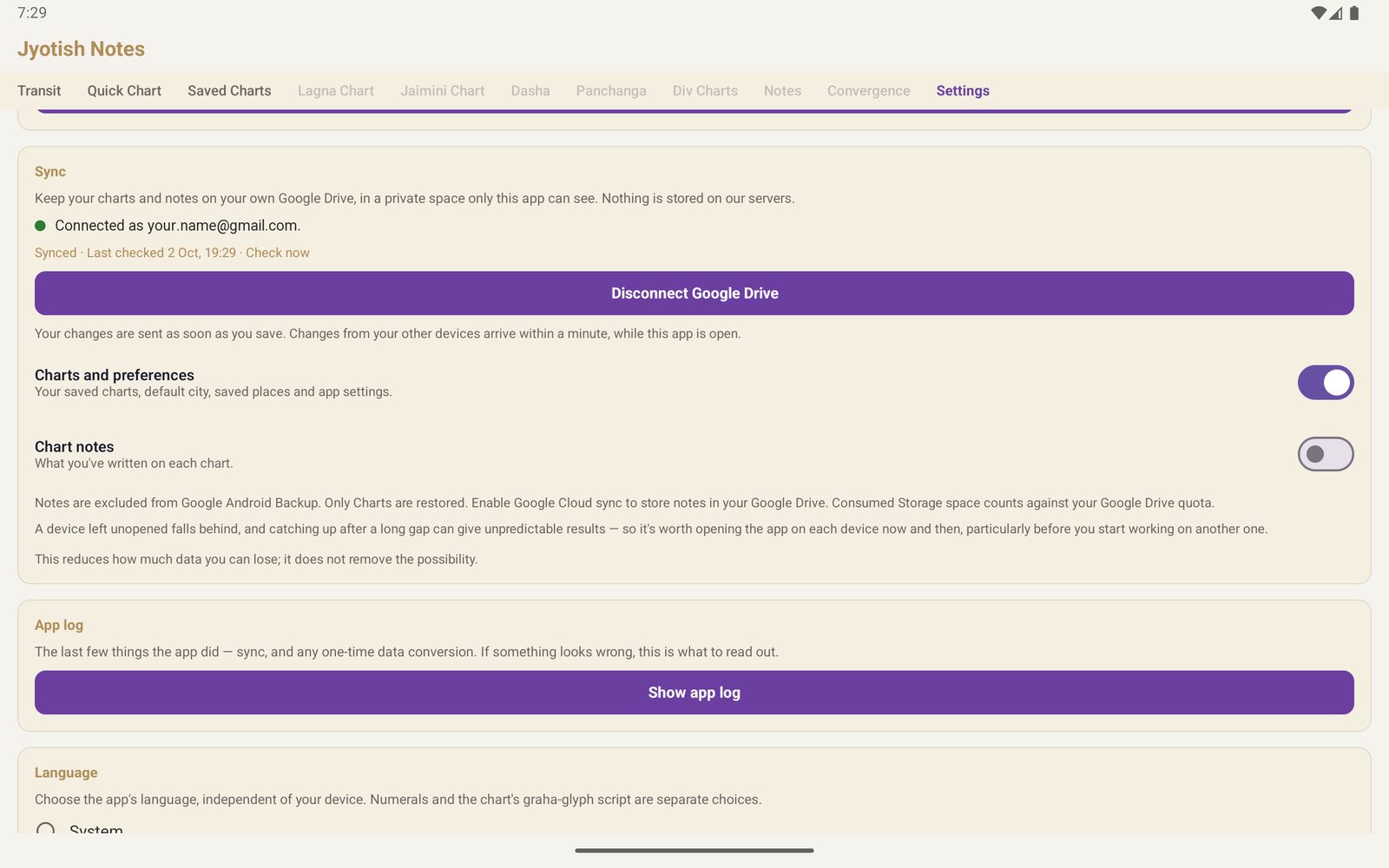
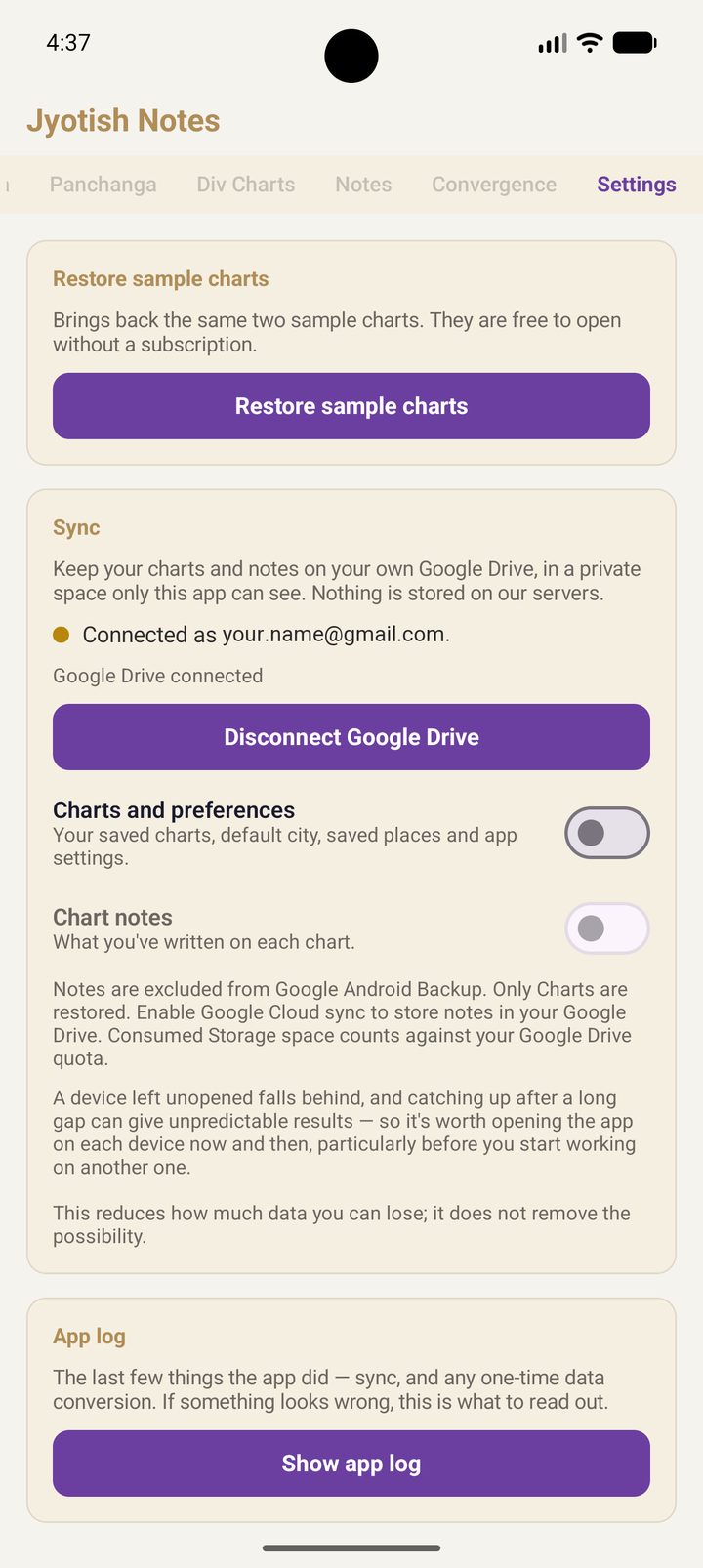
You are back on the Sync card, and it has changed. It now reads Connected as your account, with an amber dot and Google Drive connected. The button that said Connect Google Drive now says Disconnect Google Drive. The two switches below it are still off: connecting does not copy anything yet. That starts in the next step.
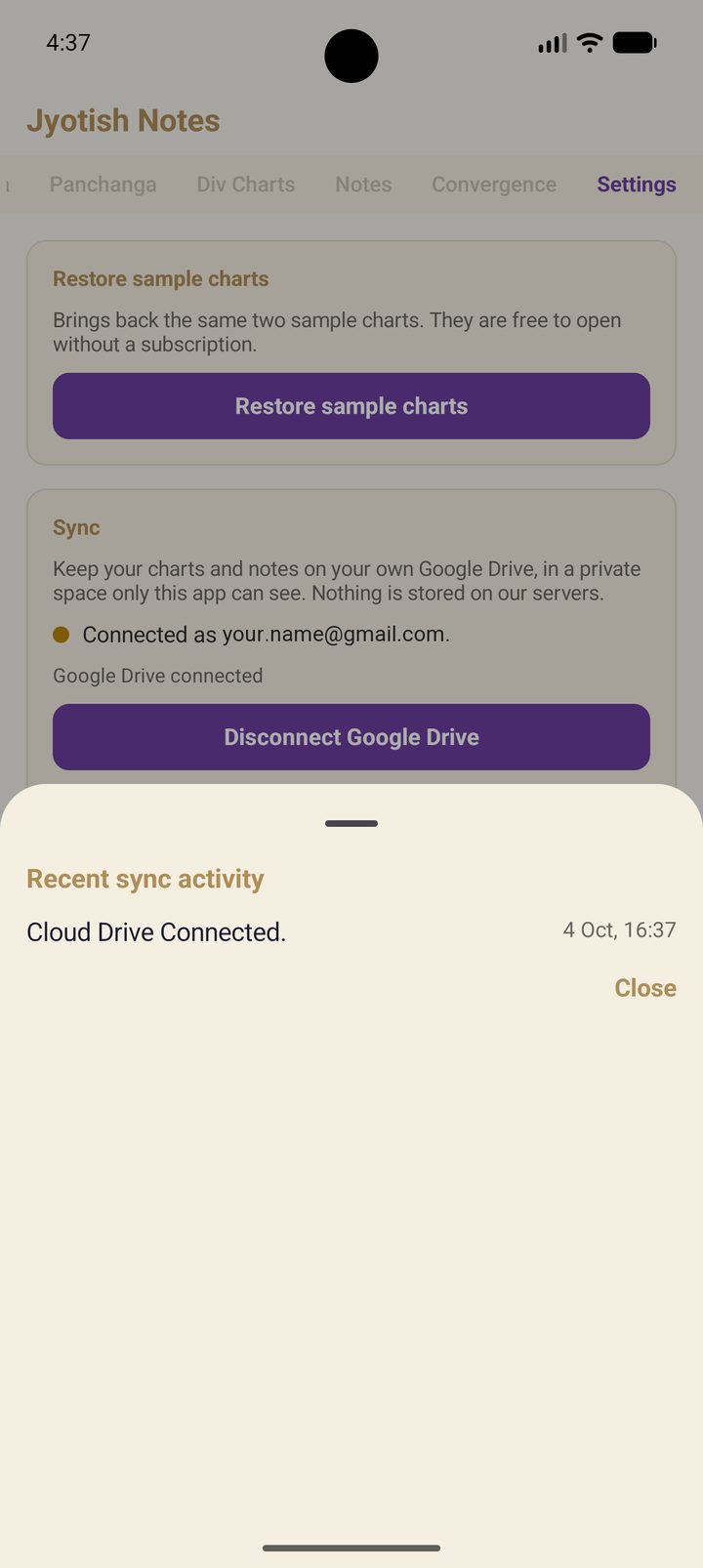
Want to see it confirmed? Scroll down to the App log card and tap Show app log. The newest line reads Cloud Drive Connected. with the time beside it. The log keeps the last few things sync did, and if you ever write to us about sync, it is what to read out.
2 · Turn on chart sync
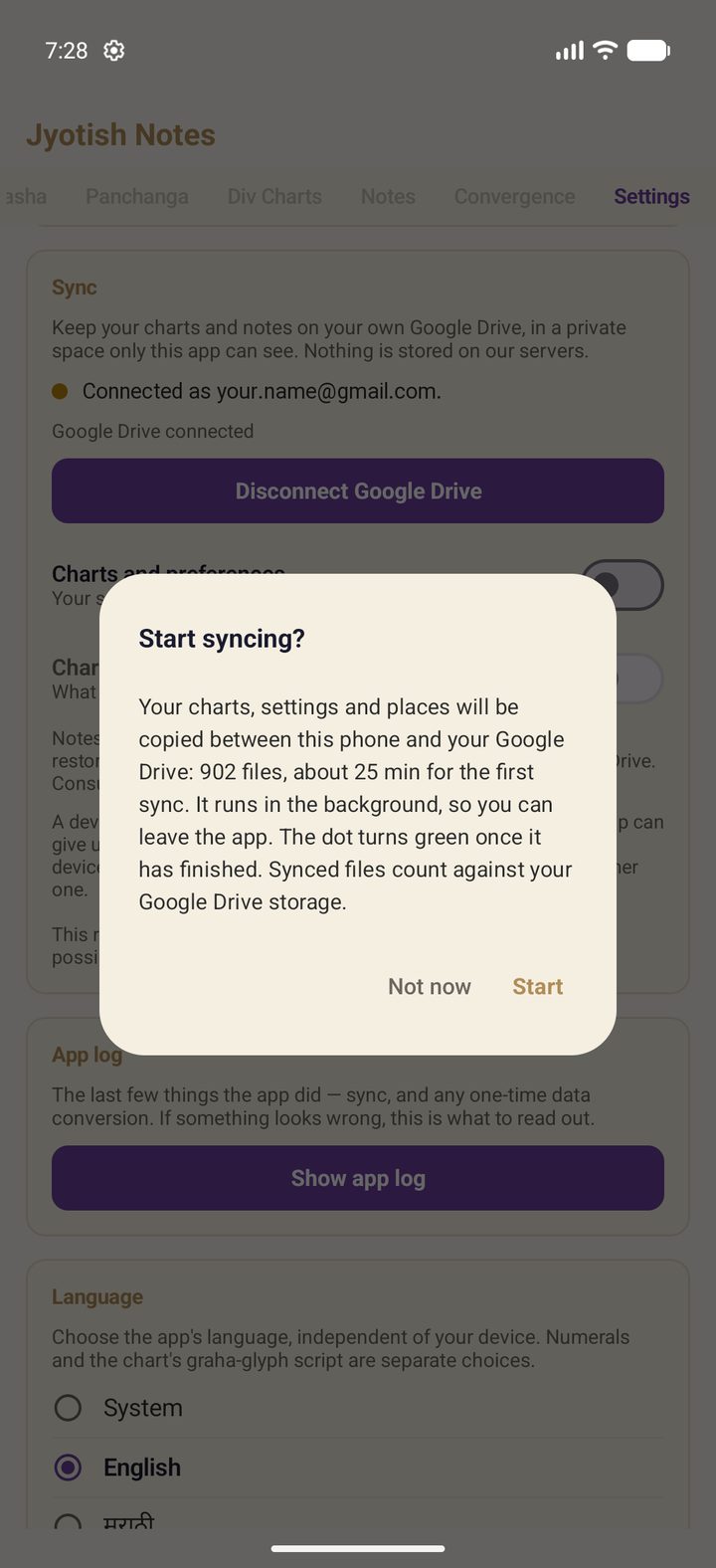
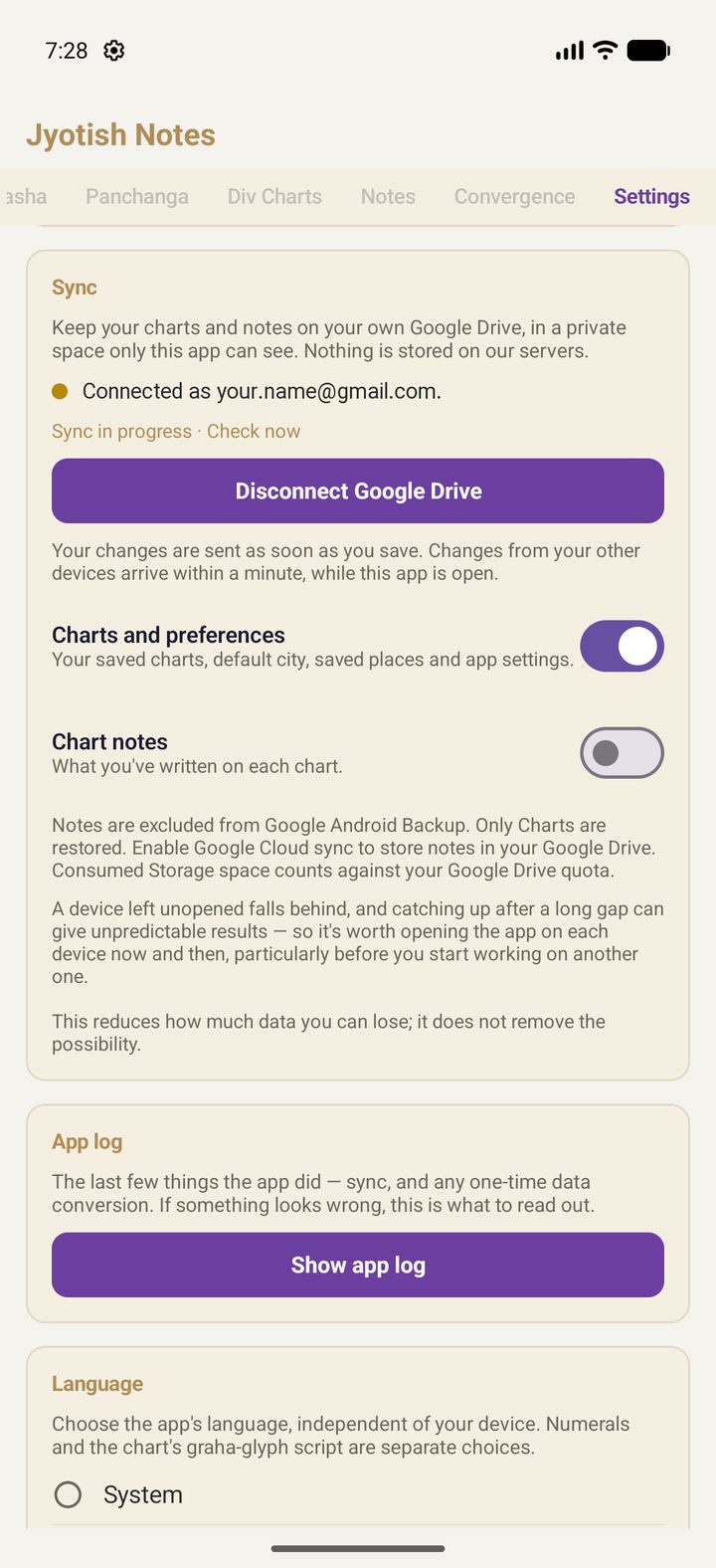
- Switch on Charts and preferences.
- The first time on this device, the app tells you how much there is to copy and roughly how long it will take — for example “312 files, about 9 min for the first sync” — then asks Start syncing? Tap Start, or Not now to leave the switch off.
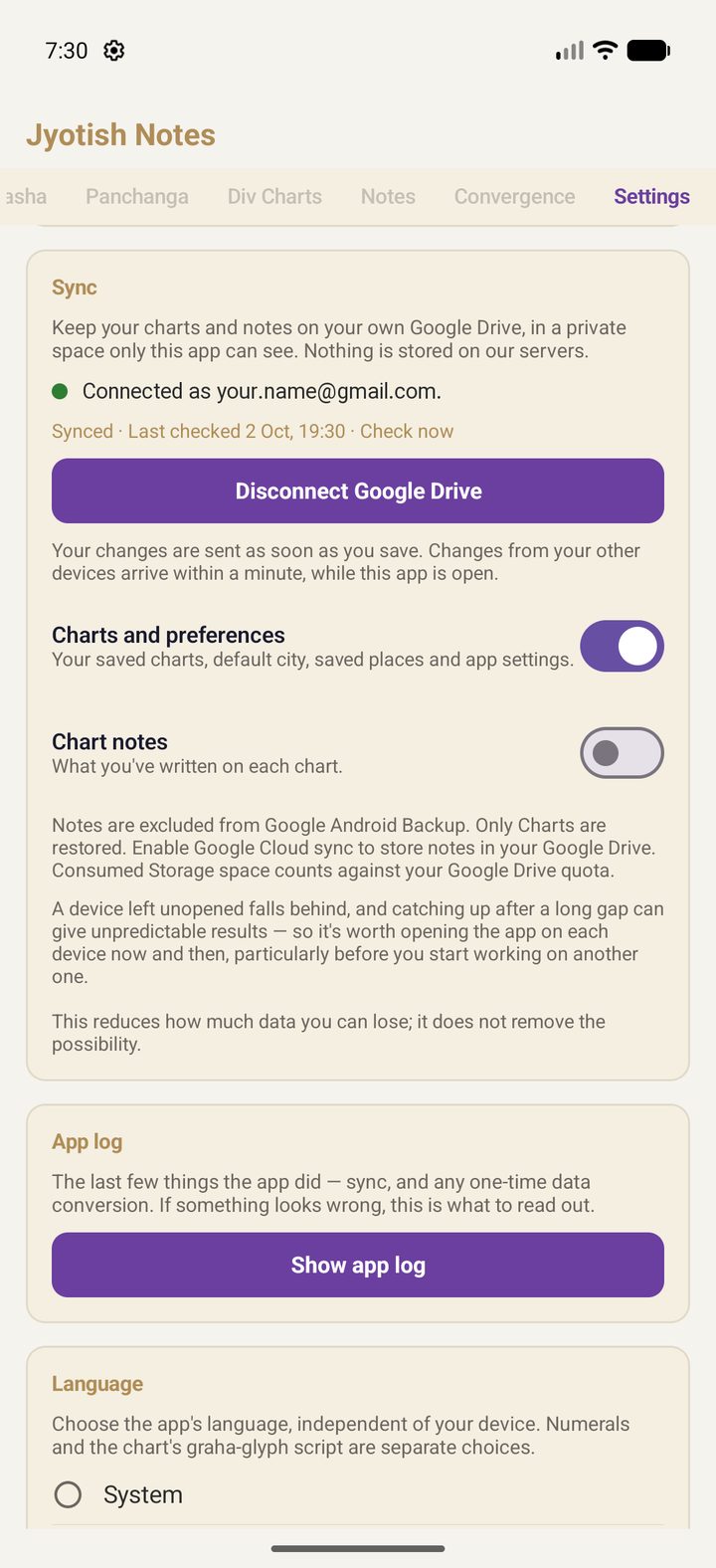
- While it runs, the card shows First sync: 120 of 312. The dot turns green with Synced when it has finished.
If your Google Drive already holds charts from your other device, they arrive on this one in the same pass; anything only this device has is sent the other way. ⚠ On a device joining an existing library, the estimate counts only the files this device has — the charts coming down from Google Drive are not in it yet, so the real first sync can take much longer than it says (about 17 minutes for 900 charts; see below).
3 · Turn on notes sync (optional)
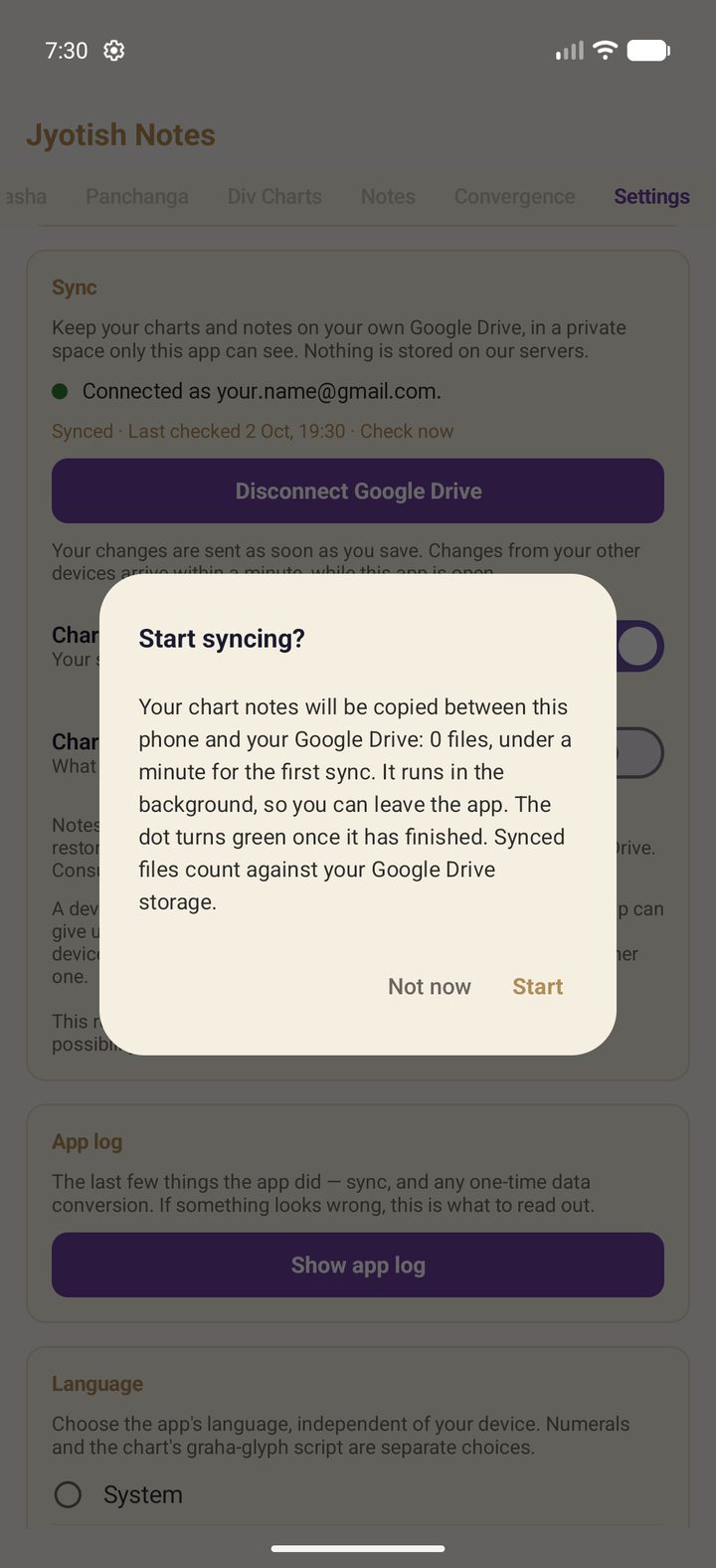
Switch on Chart notes once chart sync is on. The first time, it asks Start syncing? with its own count and time, just like charts.
The one thing to know about notes — the app reminds you of it when you switch notes on again later:
Your notes are kept one file per chart, per year. If you write on two devices without opening the app in between, the more recent device's notes for that year replace the other's.
Now look back for the screen where you type your Google password into Jyotish Notes.
There isn't one. The app never asks for your password, never sees it, never stores it. Your phone is already signed in to Google, so Google itself puts the question to you, on your own device, and you answer Google directly.
If you say yes, Google hands the app a key. Not the key to your Google Drive. The key to one locker inside it.
What that key opens, and what it doesn't
When you connect, Google creates a private folder in your Google Drive, accessible only to Jyotish Notes. It is hidden from other apps, and it does not appear among your files in Google Drive.
Google's approval screen tells you exactly what the app is asking for, and the answer is narrow: its own folder, and nothing else.
The app can
- Use one private folder that Google sets aside in your Google Drive for this app alone.
- Save, read, update and delete its own files there: your charts, settings, saved places and, if you choose, your notes.
The app cannot
- See anything else in your Google Drive. Not your photos, not your documents, not your spreadsheets. It cannot even list them.
- Learn your Google password, or use your account for anything beyond that one folder.
- Share the folder with anyone. Google does not allow it.
And the locker works in both directions:
| Who | Can they open the folder? |
|---|---|
| Other apps, on your phone or connected to your Google Drive | No. Google lets only the app that created the folder open it. |
| Us, the makers of Jyotish Notes | No. Your charts go from your device straight to your Google Drive. We are not on the route. |
| You, browsing the Google Drive app | It is hidden on purpose, so nothing gets moved or renamed by accident. You can still see how much space it uses and delete it whenever you like. |
If this sounds familiar, it should. On your phone, every app has its own private storage that other apps cannot read. This is the same idea, in your Google Drive.
The part other announcements leave out
We promised not to say “securely” and walk away, so here is the plain version.
- Your Google account is the lock. Keep it strong: use a good password and turn on 2-Step Verification. It guards your photos and documents; now it guards your charts too.
- It uses your Google Drive storage. Very little: 900 charts take less than 1 MB.
- Sync means the same everywhere. Delete a chart on one device and it is deleted on the others.
- Open the app on each device now and then. A device that has been asleep for months catches up best in small steps.
Which Google account?
Your Play Store account should be listed for you to choose, on your phone and again on your tablet.
That account already owns your subscription. Google carries purchases made with an account over to your other devices signed in with it, and we honour that in full: install Jyotish Notes on your second device and it is the complete app, with no second subscription and nothing more to pay. Connect the same account for sync, and the same library is waiting there too.
You can always change your mind
- Pause: switch sync off. Nothing is deleted anywhere. See Stopping sync.
- Disconnect from the app: either remove everything Jyotish Notes put in your Google Drive and withdraw its key, or disconnect just this device and leave the rest alone. The charts on your phone stay either way. See Disconnecting and clearing Google Drive.
- Or go over our heads: take the key away, and empty the locker, from your own Google account. Neither needs our permission. See Clearing Google Drive yourself.
Uninstalling the app does not delete the folder. It waits in your Google Drive until you reconnect or clear it.
Sync is optional and off until you turn it on. Leave it off, and Jyotish Notes stays entirely on your device, as it always has.
Ready? Open Settings → Sync → Connect Google Drive. The step-by-step guide follows.
The step-by-step guide
- What syncs
- Before you start
- 1 · Connect Google Drive
- 2 · Turn on chart sync
- 3 · Turn on notes sync
- How long the first sync takes
- Everyday use
- Good habits
- A new phone or a reinstall
- Stopping sync
- Disconnecting and clearing Google Drive
- Clearing Google Drive yourself
- When something goes wrong
- Privacy
What syncs
| Switch | What it carries |
|---|---|
| Charts and preferences | Your saved charts, default city, saved places and app settings. |
| Chart notes | What you've written on each chart. A separate choice, and only available while chart sync is on. |
The sample charts that come with the app are the same on every device, so they are never synced.
How long the first sync takes
Only the first sync on a device takes time; after that each change is a single small file.
| Direction | Measured speed | A 900-chart library |
|---|---|---|
| Sending charts from this device | about 1.7 seconds a chart | about 25 minutes |
| Receiving charts from Google Drive | about 1.1 seconds a chart | about 17 minutes |
Our recommendation: keep Jyotish Notes open, on the Settings tab, with the screen on, until the dot turns green. That is the fastest and surest way through a large first sync.
If you do leave it, here is what to expect — nothing already copied is ever lost, because each chart is saved the moment it arrives:
| You… | The first sync… |
|---|---|
| switch to another app, or press Home | carries on in the background. Android lets apps work in the background for about 10 minutes at a time, so a large library comes in bursts. |
| swipe Jyotish Notes away from your recent apps | may pause until you next open the app — Android decides; we have seen it do both. Open the app and it carries on from where it stopped. |
| restart the phone | carries on by itself once you have unlocked the phone — no need to open the app. |
| lose the network | waits, and carries on once you are back online — or, after a long outage, the next time you open the app. |
Everyday use
- Your changes are sent as soon as you save.
- Changes from your other devices arrive within a minute while the app is open. A short notice tells you when a chart or notes arrive, or when a chart was deleted on another device.
- Check now on the card asks Google Drive straight away; the card shows when it last checked.
- Deleting is synced too. A chart deleted on one device is deleted on the others.
- App log (Settings → App log → Show app log) lists the last few things sync did — what was sent, received or replaced. If you ever write to us about sync, this is what to read out.
| Dot | Meaning |
|---|---|
| Green · Synced | The last check found everything in step. |
| Amber | Connected but not synced yet this session, or a sync is in progress. |
| Red · Sync problem | Something needs your attention — the message under it says what. See When something goes wrong. |
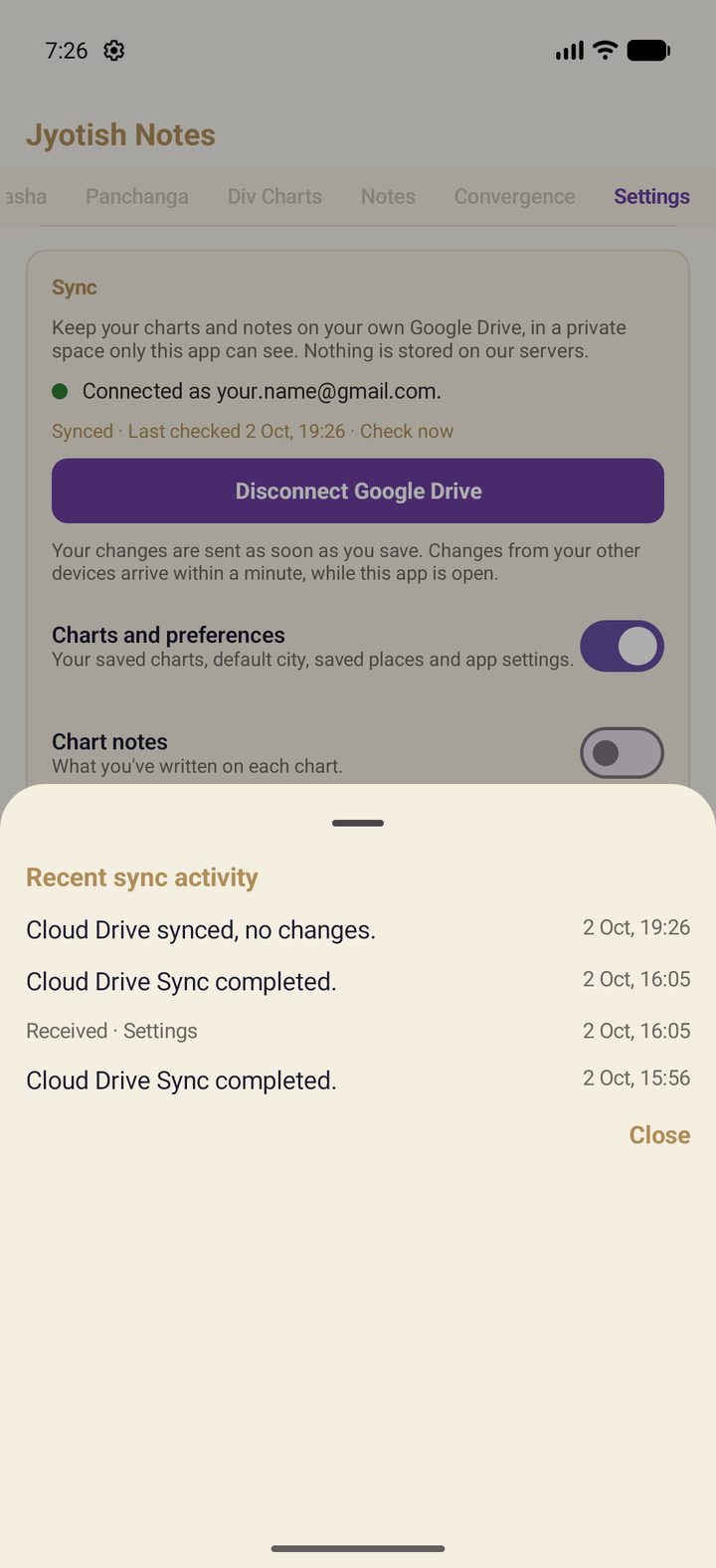
Good habits
A device left unopened falls behind, and catching up after a long gap can give unpredictable results. So:
- Open the app on each device now and then, so it can catch up.
- Before you start working on another device, open the app on it and let the dot turn green first.
- Avoid writing notes for the same chart and year on two devices without opening the app in between — the more recent device's notes for that year win.
We would rather be plain about the limit: sync reduces how much you can lose; it does not remove the possibility.
A new phone or a reinstall
Install Jyotish Notes, connect the same Google account, and switch on chart sync (and notes sync, if you used it). Your library arrives from Google Drive in the first sync. Uninstalling the app does not remove anything from your Google Drive — the synced files wait there until you connect again or clear them.
Stopping sync
Switch Charts and preferences (or just Chart notes) off. Syncing stops and nothing is deleted — not on this device, not in Google Drive. Switch it back on whenever you like.
Disconnecting and clearing Google Drive
What gets deleted, and what stays
- Deleted from your Google Drive: everything sync put there — your synced charts, chart notes, settings and saved places. Deleted files are removed from your Google Drive straight away.
- Kept on your phone: your charts and notes stay on the device until you remove them or uninstall the app.
- Kept by us: nothing. Your data goes from your phone to your own Google Drive and never reaches us, so we have no copy to keep or delete.
- Google's own handling of deleted Drive data is covered by Google's privacy policy.
How to delete it
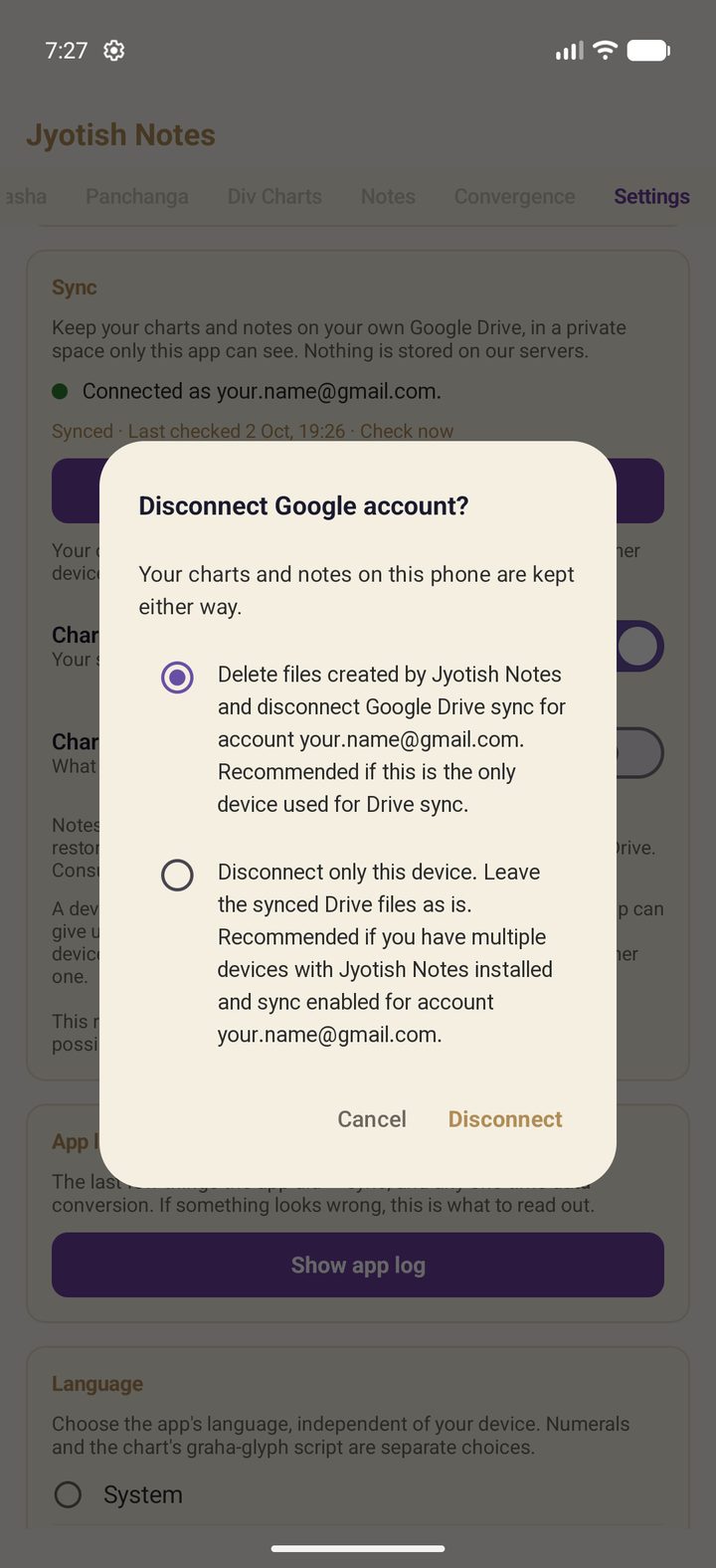
Tap Disconnect Google Drive on the card. You choose one of two options; the charts and notes on this phone are kept either way.
| Option | What happens | Choose it when |
|---|---|---|
| Delete files created by Jyotish Notes and disconnect | Every synced file is deleted from your Google Drive, the app's access to Google Drive is withdrawn, and this phone forgets the connection. | This is the only device you use with sync, or you want your Google Drive cleared. |
| Disconnect only this device | This phone stops syncing and forgets the connection. The files in Google Drive are left as they are. | Your other devices keep syncing with this account. |
With the first option, a progress screen walks through each step — Sync stopped, Deleting synced files from Drive, Revoke Drive access, Clear this phone — with a count and the time left. Keep the app open until it finishes; a library of about 900 charts clears in about a minute.
⚠ If other devices still sync with that account, the first option also stops them: their Google Drive access is withdrawn with it, and they will ask you to reconnect.
⚠ The dialog opens with the first option, Delete, already selected. If you only want to disconnect this device, select the second option before you tap Disconnect.
Clearing Google Drive yourself
If the app can't finish a disconnect — you were offline, say — it tells you, and you can do the same from a computer:
- Delete the synced files: on drive.google.com, open Settings (the gear) → Manage apps, find Jyotish Notes, then Options → Delete hidden app data.
- Withdraw the app's access: at myaccount.google.com → Security → Your connections to third-party apps, choose Jyotish Notes and remove its access.
The two are independent. Withdrawing access stops sync but leaves the files in Google Drive; deleting the files does not withdraw access. Do both to leave nothing behind.
When something goes wrong
| The card says | What to do |
|---|---|
| Google Drive access was lost. | Access was withdrawn — perhaps from your Google account settings. Tap Reconnect Google Drive. It tries the same account first; if that fails, tap it again to choose an account. Your switches and library are untouched meanwhile. Reconnecting on one device restores access for your other devices on the same account too. |
| Unable to connect to the network. | Check Wi-Fi or mobile data and try again. |
| Your Google Drive is full. | Free up space in your Google account, then tap Check now. |
| This device is connected to a different Google account. | Sync uses one account at a time. Choose which library to keep before syncing again. |
| Your Google account doesn't allow this app to use Drive. | Common with work or school accounts, where an administrator decides. Use a personal account, or ask the administrator. |
| Couldn't reach Google Drive. It will try again. | Usually temporary. Nothing to do — it retries by itself. |
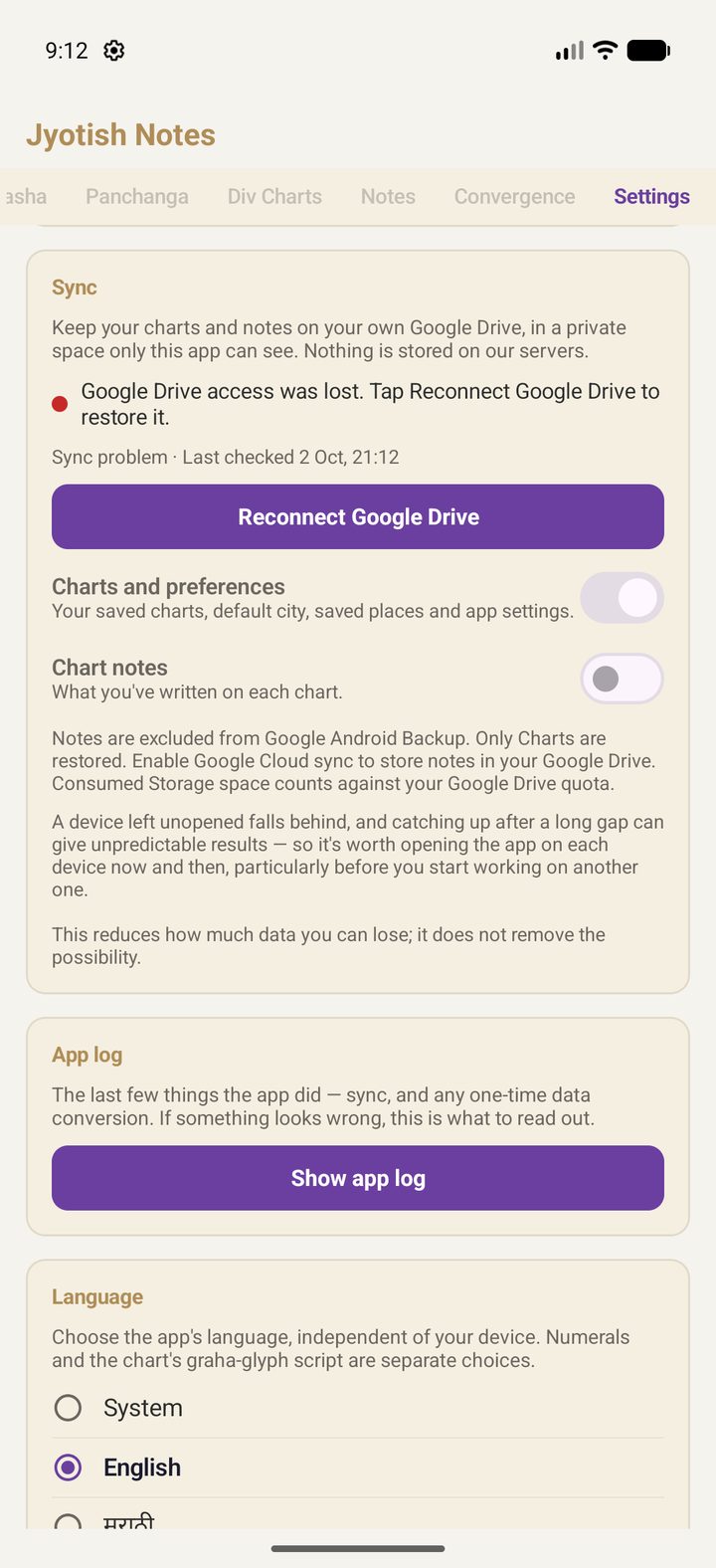
Still stuck? Write to support@jyotishnotes.com with a screenshot of the card and what the App log shows.
Privacy
- Your data goes from your device directly to your own Google Drive, over an encrypted connection. It never passes through us, and we have no way to read it.
- The app asks Google for access to its own private folder only. It cannot see, open or change any other file in your Google Drive.
- You can withdraw access and delete the synced files at any time, from the app or from your Google account, as described above.
Our Privacy Policy covers the rest.